> ## Documentation Index
> Fetch the complete documentation index at: https://www.illusory.io/docs/llms.txt
> Use this file to discover all available pages before exploring further.
# iOS WiFi and iPhone Apps
> Using Illusory with iOS.
Can't find proxy connection details? [Connect](/connect/introduction).
### Method 1: Configure iPhone apps (Recommended)
Most popular apps:
* [Shadowrocket](https://apps.apple.com/us/app/shadowrocket/id932747118) (iPhone, iPad, Apple TV)
* [Surge](https://apps.apple.com/us/app/surge-4/id1442620678) (iPhone, iPad, Apple TV)
* [Stash](https://apps.apple.com/ca/app/stash-rule-based-proxy/id1596063349?platform=iphone) (iPhone, iPad, Apple TV)
Once you download those, you can follow their guides on adding a proxy.
### Method 2: Configure iPhone Wi-Fi settings
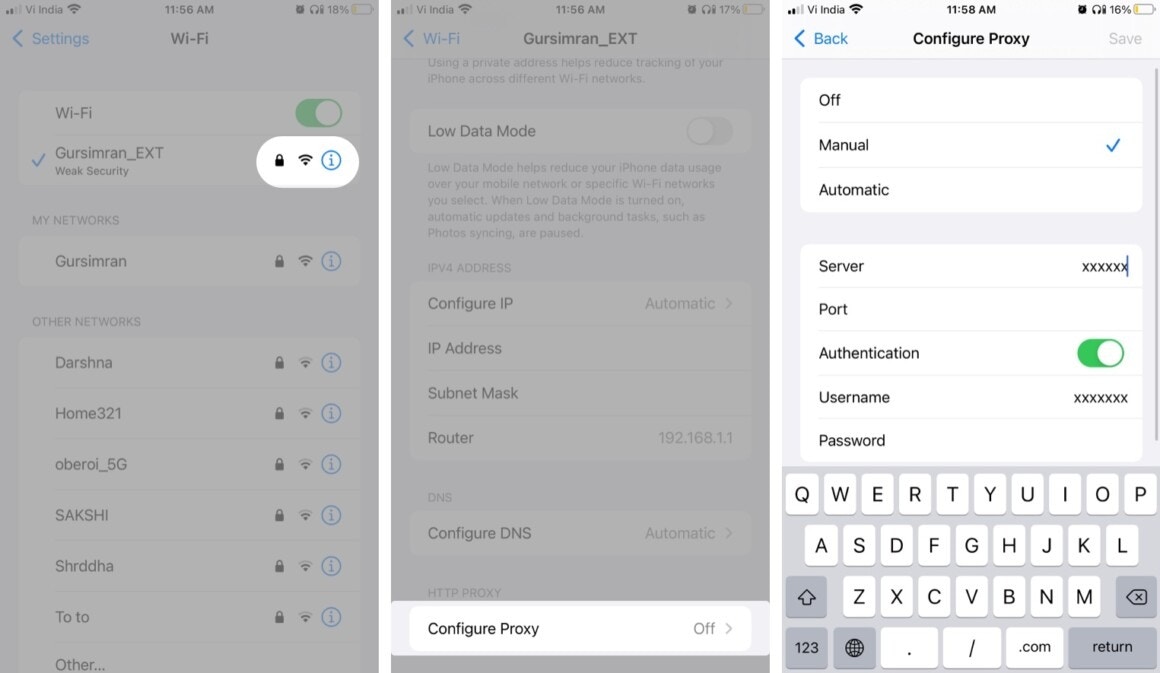
Go to Settings and select Wi-Fi.
Tap the `i` icon next to the Wi-Fi network you want to enable the proxy server for.
Scroll to HTTP Proxy and tap `Configure Proxy`.
Select `Manual`.
Tap `Server` and enter the proxy server address.
If you’ve authenticated by whitelisting your IP address, you don’t need to enter the credentials. We
recommend using whitelist IP for Android and iOS connections for ease of use.
Tap `Save` to enable the setting.
 Go to [What Is My IP Address](https://whatismyipaddress.com/) to see if your IP address and location have changed.