> ## Documentation Index
> Fetch the complete documentation index at: https://www.illusory.io/docs/llms.txt
> Use this file to discover all available pages before exploring further.

# Android Mobile Network

> Using Illusory with Android.

<Warning>
  Can't find proxy connection details? [Connect](/docs/connect/introduction).
</Warning>

### Configure Android Mobile Network

You can forward your Android device’s mobile network traffic through Illusory. This will change your IP address and location. Here’s how to set it up:

<Steps>
  <Step title="Find Mobile Network">
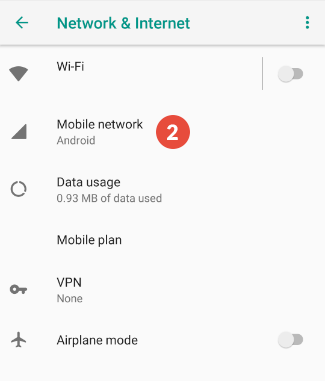
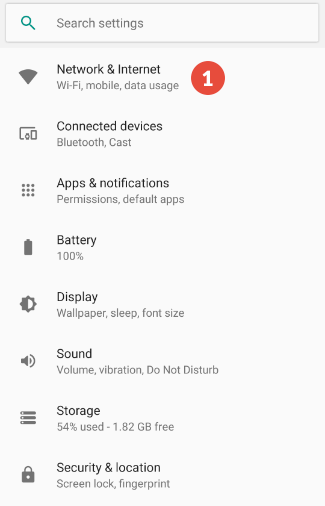
    Go to the `Settings` app and select \`Network & Internet.
    <Frame>
      <img src="https://mintcdn.com/illusory/AS1pG9ZbQjnyrN5d/images/connect/android/mobile/how-to-set-up-proxy-on-android-mobile-data-1.png?fit=max&auto=format&n=AS1pG9ZbQjnyrN5d&q=85&s=209003593ad5c6ab21ecdc95d6edf54b" width="325" height="506" data-path="images/connect/android/mobile/how-to-set-up-proxy-on-android-mobile-data-1.png" />
    </Frame>
  </Step>

  <Step title="Select Mobile Network">
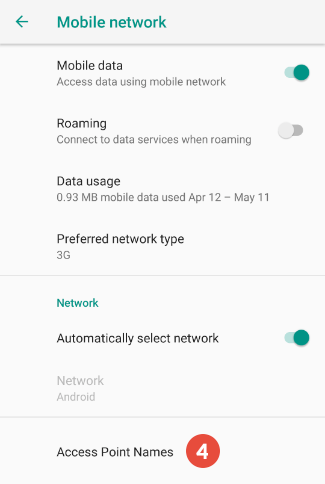
    Tap on `Mobile Network`.

    <Frame>
      <img src="https://mintcdn.com/illusory/AS1pG9ZbQjnyrN5d/images/connect/android/mobile/how-to-set-up-proxy-on-android-mobile-data-2.png?fit=max&auto=format&n=AS1pG9ZbQjnyrN5d&q=85&s=d66ecfbd2878fc0371953f6bb9b031e0" width="325" height="381" data-path="images/connect/android/mobile/how-to-set-up-proxy-on-android-mobile-data-2.png" />
    </Frame>
  </Step>

  <Step title="Advanced Network Settings">
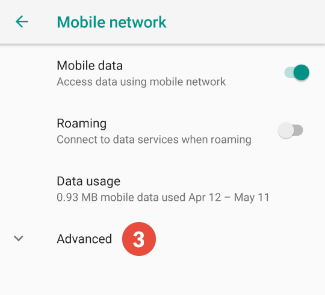
    Navigate to the `Advanced` settings of your mobile network
    <Frame>
      <img src="https://mintcdn.com/illusory/AS1pG9ZbQjnyrN5d/images/connect/android/mobile/how-to-set-up-proxy-on-android-mobile-data-3.png?fit=max&auto=format&n=AS1pG9ZbQjnyrN5d&q=85&s=17904a16c311b233241d0228646b7d76" width="325" height="295" data-path="images/connect/android/mobile/how-to-set-up-proxy-on-android-mobile-data-3.png" />
    </Frame>
  </Step>

  <Step title="Access Point Names">
    Find Access Point Names

    <Frame>
      <img src="https://mintcdn.com/illusory/AS1pG9ZbQjnyrN5d/images/connect/android/mobile/how-to-set-up-proxy-on-android-mobile-data-4.png?fit=max&auto=format&n=AS1pG9ZbQjnyrN5d&q=85&s=0550b14b33ec08d420e7b014f20a4090" width="325" height="484" data-path="images/connect/android/mobile/how-to-set-up-proxy-on-android-mobile-data-4.png" />
    </Frame>
  </Step>

  <Step title="Select APN">
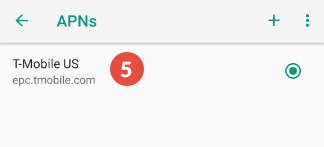
    Tap on the APN you are currently using
    <Frame>
      <img src="https://mintcdn.com/illusory/AS1pG9ZbQjnyrN5d/images/connect/android/mobile/how-to-set-up-proxy-on-android-mobile-data-5.png?fit=max&auto=format&n=AS1pG9ZbQjnyrN5d&q=85&s=044b386627bb225ed8695b20f6e5fd1b" width="324" height="147" data-path="images/connect/android/mobile/how-to-set-up-proxy-on-android-mobile-data-5.png" />
    </Frame>
  </Step>

  <Step title="Add proxy details">
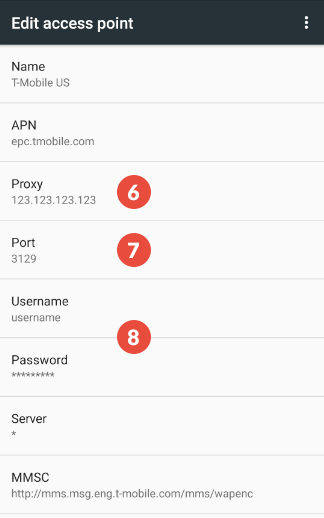
    Enter the proxy `Server IP` and `Port` found in your dashboard under <b>Connect</b>.

    <Note>
      If you're using Whitelist IP (recommended) then you can skip adding a username and password.
    </Note>

    <Frame>
      <img src="https://mintcdn.com/illusory/AS1pG9ZbQjnyrN5d/images/connect/android/mobile/how-to-set-up-proxy-on-android-mobile-data-6.png?fit=max&auto=format&n=AS1pG9ZbQjnyrN5d&q=85&s=c743beb5ea99aa830a2dc2cfaaa3a223" width="324" height="518" data-path="images/connect/android/mobile/how-to-set-up-proxy-on-android-mobile-data-6.png" />
    </Frame>
  </Step>

  <Step title="Apply APN Settings">
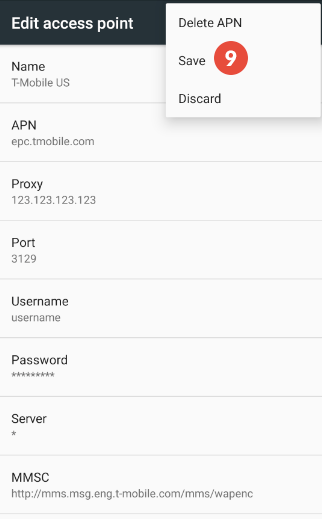
    Click the 3 dots at the top of the screen and `Save`.
    <Frame>
      <img src="https://mintcdn.com/illusory/AS1pG9ZbQjnyrN5d/images/connect/android/mobile/how-to-set-up-proxy-on-android-mobile-data-7.png?fit=max&auto=format&n=AS1pG9ZbQjnyrN5d&q=85&s=86bf4930c4c5418f9d686f48aad58ad2" width="322" height="519" data-path="images/connect/android/mobile/how-to-set-up-proxy-on-android-mobile-data-7.png" />
    </Frame>
  </Step>

  <Step title="Authenticate">
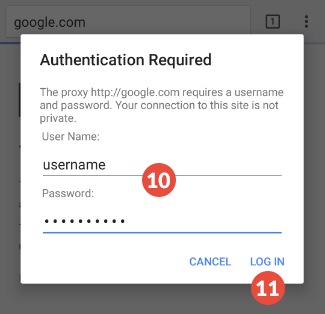
    Enter the proxy `Server IP` and `Port` found in your dashboard under <b>Connect</b>.

    <Frame>
      <img src="https://mintcdn.com/illusory/AS1pG9ZbQjnyrN5d/images/connect/android/mobile/how-to-set-up-proxy-on-android-mobile-data-8.png?fit=max&auto=format&n=AS1pG9ZbQjnyrN5d&q=85&s=9420523df978701a2b21e4d673448286" width="325" height="314" data-path="images/connect/android/mobile/how-to-set-up-proxy-on-android-mobile-data-8.png" />
    </Frame>

    Unlike iOS, Android devices don’t have fields for authenticating the proxy server in the settings. Instead,
    you’ll be asked to authenticate when you open your web browser. There, simply enter your credentials: username
    and password.

    <Note>
      If you’ve authenticated by whitelisting your IP address, you don’t need to enter the credentials. We
      recommend using whitelist IP for Android and iOS connections for ease of use.
    </Note>
  </Step>

  <Step title="Test">
    Go to [What Is My IP Address](https://whatismyipaddress.com/) to see if your IP address and location have
    changed.
  </Step>
</Steps>